Pop-up blockers can be a blessing for avoiding unwanted ads, but they can also block useful windows like login forms or download pages. The good news is that whether you're using Safari or Google Chrome, it’s easy to turn off pop-up blockers or allow them only on trusted sites.
This guide answers the question, “how do I disable pop up blocker on Mac,” with simple, easy-to-follow steps. By the end, you’ll be able to manage pop-up blockers to fit your browsing needs while keeping things safe. Let’s dive in!
Understanding Pop-up Blockers on Mac
Before you turn off your pop-up blocker, it's important to understand what they do and why they’re enabled by default. This will help you decide when to allow pop-ups and when to keep them blocked.
What Is a Pop-up Blocker and Why Is It Used?
A pop-up blocker is a feature built into most modern browsers, including Safari and Google Chrome, to stop unwanted windows or tabs from opening automatically. These pop-ups are often used by advertisers or malicious websites to push ads, scams, or malware. The goal of the blocker is to keep your browsing safe from these interruptions.
Pop-up blockers are especially useful for everyday users, including families who want to keep their browsing safe and hassle-free. They prevent annoying ads and protect against malicious sites that try to trick you. However, sometimes helpful pop-ups are blocked, which is why learning how to disable the pop-up blocker is important.
How Do Pop-up Blockers Affect Your Browsing Experience?
While pop-up blockers do a great job of protecting you, they can sometimes get in the way of normal browsing. For example, if you’re trying to log into a website, make a payment, or use an online chat support system, the necessary pop-up window might be blocked.
If you're trying to turn off pop-up blocking on your Mac, you might need to turn it off temporarily or adjust it to allow certain websites. Most browsers let you whitelist trusted sites, so you don't have to disable pop-up blocking everywhere.
How to Disable Pop-up Blocker on Safari for Mac
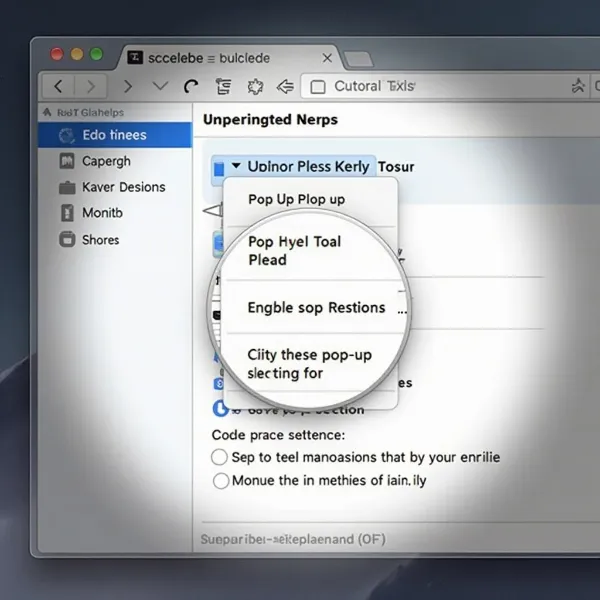
Safari is the default browser on most Macs, and it offers easy ways to manage pop-up blockers. If you’re looking for instructions on how to remove pop up blocker on Mac with Safari, here’s what you need to do:
- Open Safari and go to settings
Start by opening Safari. In the top menu, click Safari, then select Settings or Preferences. This will open the settings panel where you can manage everything, including pop-ups. - Go to the Websites tab
Once in Settings, click on the Websites tab. This is where you can control how Safari interacts with different sites. Scroll down and find the Pop-up Windows option. - Disable the pop-up blocker
To disable the blocker completely, find the option labeled “When visiting other websites” and change it from Block to Allow. This is a simple way to learn how to take off pop up blocker on Mac in Safari. - Allow pop-ups for specific websites
Instead of turning off pop-up blocking for everything, you can allow pop-ups for specific sites. Just select a website from the list and change its setting to Allow. This is perfect for sites you trust, like banking or shopping websites, without opening the floodgates for unwanted ads.
How to Turn Off Pop up Blocker on Google Chrome for Mac
Google Chrome is another popular browser, and it offers a similar approach to managing pop-ups. If you’re wondering how do I turn off pop up blocker on Mac using Chrome, follow these easy steps:
- Go to Chrome’s settings
Open Google Chrome and click the three-dot menu in the top-right corner. From the dropdown, choose Settings to open the main settings page. - Select Privacy and Security
In the left-hand sidebar, click on Privacy and Security, then select Site Settings. This is where you can adjust permissions for websites. - Disable the pop-up blocker
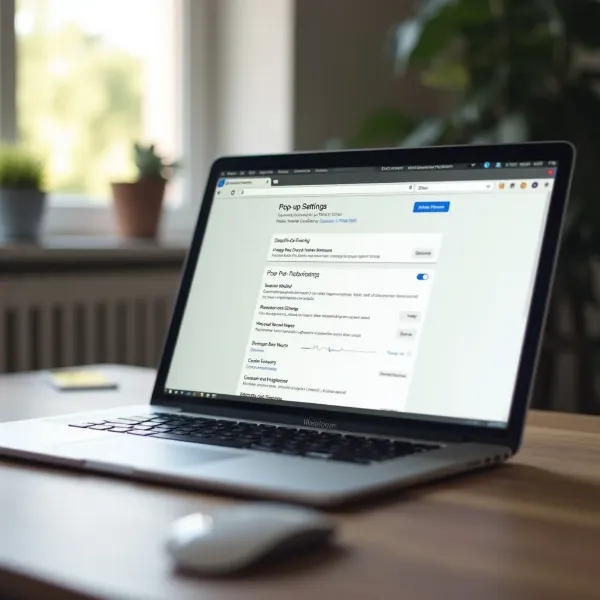
Scroll down until you find the Pop-ups and redirects section. Here, you can toggle the switch to allow pop-ups. This is how you can easily figure out how to remove pop up blocker on Mac when using Chrome. - Allow pop-ups for specific websites
If you don’t want to allow pop-ups on all sites, you can click Add under the “Allowed” section and enter the URL of any trusted website. This lets you keep pop-ups blocked elsewhere while allowing them for trusted sites.
Dealing with Pop-up Blockers from Extensions and Other Sources
If pop-ups are still blocked after you’ve turned off the browser’s built-in blocker, the problem might be with an extension or third-party software. Unlike Windows, where users often search for Ctrl+Alt+Delete on a Mac, macOS manages system processes and browser permissions differently.
Some browser extensions, like ad blockers or security tools, also block pop-ups by default. Check your extension settings or temporarily disable them to see if that fixes the problem. If pop-ups work after you disable an extension, adjust its settings rather than removing it completely.
Additionally, antivirus or parental control software on your Mac can block pop-ups as part of its web protection features. If you’re having trouble with pop-ups, check the settings of these tools to see if they’re causing the issue.
Conclusion
Learning how do I disable pop up blocker on Mac can help you manage pop-ups while still keeping your browsing experience safe and smooth. Both Safari and Chrome make it easy to disable pop-up blocking entirely or only for trusted sites.
By adjusting your settings or whitelisting specific websites, you can enjoy uninterrupted browsing while avoiding potential risks. Take control of your online experience with these simple steps!