We all love the customization that Android devices offer, allowing us to tailor our phones to our specific needs. One of the simplest yet most effective ways to personalize your phone is by hiding apps. Whether you're looking to keep certain apps private or just tidy up your home screen, knowing how to hide apps on Android can help.
In this guide, we'll walk you through the steps and offer some tips for locking apps and boosting privacy on your device.
Why You Might Want to Hide Apps on Android
Hiding apps on Android isn’t just about privacy, it’s about keeping your phone organized and secure. Here are a few reasons you might want to consider this feature.
Protecting Your Privacy
In today's digital world, privacy is more important than ever. You probably have sensitive apps like your banking app, messaging apps, or even photos you don’t want anyone else to stumble upon. If your phone is ever handed to a family member, guest, or colleague, hiding these apps can keep your information safe.
Keeping Your Home Screen Clean
If you’re someone who installs a lot of apps, it can be a challenge to keep your home screen tidy. Hiding apps helps declutter the space, so you only see the apps you use regularly, while still having access to others when you need them.
Hiding Apps for Family Members or Guests
If you share your phone with family members or guests, especially children, hiding certain apps might be a good idea. Whether it's keeping kids from accessing certain games or avoiding the accidental opening of apps you don’t want others to see, hiding apps gives you control over what’s visible.
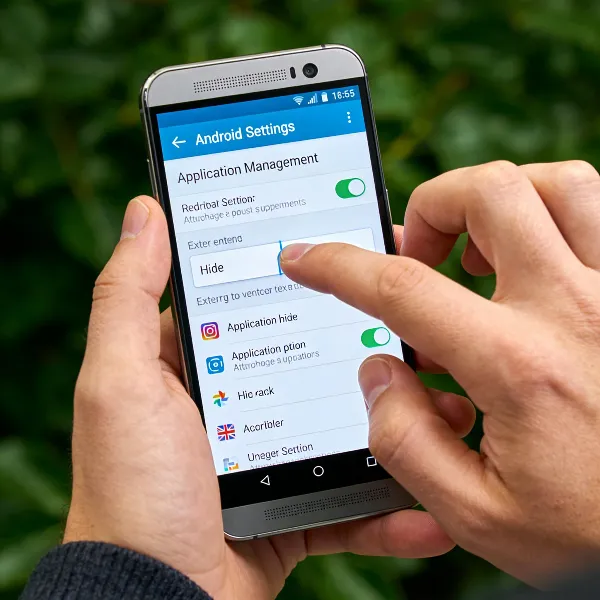
How to Hide Apps on Android: Step-by-Step Guide
Hiding apps on Android is easy, but the process can differ slightly depending on the brand of your phone. Whether you're using a Samsung, Xiaomi, or another brand, we've got you covered with a step-by-step guide to hide apps on your Android phone.
General Steps for Most Android Phones
On most Android devices, you can hide apps directly from the app drawer. Here’s how:
- Open the App Drawer: Swipe up from your home screen to access the app drawer, where all your apps are located.
- Tap the Menu Icon: Look for the three dots or the hamburger icon in the top-right corner and tap it.
- Select "Hide Apps": From the menu, choose the option to hide apps. The exact wording may vary slightly depending on your phone, but it’s usually called "Hide apps" or "App drawer settings."
- Choose Which Apps to Hide: Select the apps you want to hide. You can usually select multiple apps at once.
- Confirm: After selecting the apps you want to hide, confirm by tapping “Done” or “Apply.” Your apps will now be hidden from the app drawer.
Hiding Apps on Samsung Galaxy Devices
If you’re using a Samsung Galaxy device, you can hide apps easily with these steps:
- Open the App Drawer: Swipe up to open your app drawer.
- Tap the Three Dots Icon: In the top-right corner, tap on the three dots to open the menu.
- Select "Edit": Tap the "Edit" option from the menu.
- Tap the Minus Icon: You’ll see a minus icon appear on the apps that can be hidden. Tap the apps you want to hide.
- Save Changes: Once you’ve selected the apps you want to hide, tap “Done” to save your changes.
Alternative Methods for Xiaomi and Other Brands
For other brands like Xiaomi or OnePlus, you may find different methods for hiding apps, such as using a "Hidden Space" or “App Lock” feature.
- Xiaomi:
- Go to Settings > Apps > App Lock.
- Choose the apps you want to lock or hide and set a password or fingerprint.
- Alternatively, use the "Hidden Space" feature on your home screen by swiping to access it and add apps there.
- OnePlus:
- Open the App Drawer and swipe up to access the menu.
- Select Hide Apps from the options.
- Choose the apps you’d like to hide and confirm your selection.

How to Access Hidden Apps on Android
Once you've hidden apps on Android, you may wonder how to access them later. Fortunately, there are a few easy ways to find hidden apps when you need them.
Using the Search Feature
One of the quickest ways to find a hidden app is by using the search bar in your app drawer. Here’s how:
- Open the app drawer.
- Tap on the search bar at the top.
- Type the name of the app you’re looking for. Hidden apps should appear in the search results.
- Tap the app to open it directly.
Unhiding Apps via Settings
If you want to unhide an app, you can do so through your phone’s settings:
- Go to Settings > Apps.
- Find an option called Hidden Apps or App Drawer Settings.
- Select the apps you want to unhide and toggle them back to visible.
Alternative Methods for Launchers with "Hidden Space"
Some Android launchers, like Nova Launcher or Apex Launcher, offer a "Hidden Space" feature, where you can store apps away from the main screen. To access these apps:
- Go to your launcher settings.
- Look for a section called "Hidden Apps" or "Hidden Space."
- Tap on the apps you want to reveal.

Additional Tips for Locking Apps and Enhancing Privacy
While hiding apps is a great way to keep things private, it’s not the only way to protect your data. Android offers several other features to help lock apps and enhance your privacy.
Using App Lock Features
App locks are a great way to add an extra layer of security to your apps. Android devices, either natively or with third-party apps, let you lock individual apps using a PIN, password, or fingerprint.
To use the App Lock feature on most Android phones:
- Go to Settings > Security.
- Select App Lock and choose the apps you want to lock.
- Set a PIN, password, or fingerprint to lock the apps.
Enabling App Encryption on Android
For extra security, you can enable app encryption on your Android phone. This ensures that all data stored within certain apps is encrypted, making it harder for unauthorized users to access your information.
To enable encryption:
- Go to Settings > Security.
- Select Encrypt Device to encrypt your entire device, including apps.
Other Privacy Features to Consider
Android offers several other privacy and security features that can help you protect your data:
- Two-Factor Authentication (2FA): Enable 2FA for apps like banking or social media for extra protection.
- VPN (Virtual Private Network): A VPN helps protect your online activity, especially on public Wi-Fi networks.
- Permission Manager: Android allows you to control which apps have access to sensitive information, such as your location, camera, or microphone.
Conclusion
Knowing how to hide apps on Android is an easy yet effective way to protect your privacy, keep your home screen organized, and manage what others can see when using your phone. Whether you're looking to hide apps from prying eyes or just want a cleaner, more streamlined device, Android makes it simple to take control. By combining app hiding with other features like app locks and encryption, you can create a more secure and private mobile experience.
Now that you understand how to hide apps on Android, you can enjoy a more organized and secure phone. Whether you're keeping certain apps private or just decluttering your screen, these simple tips will help you make the most of your Android device.