If you're wondering how to log out of iMessage on your Mac, you've come to the right place. Whether you're sharing your Mac with others or just want to adjust your settings for privacy, it's easy to sign out of iMessage on Mac. This guide will walk you through the steps to log off, manage related settings, and ensure your messages stay secure.

What Is iMessage?
iMessage is Apple’s built-in messaging service that lets users send texts, photos, videos, and more across Apple devices. With iMessage, you can communicate seamlessly between your iPhone, iPad, and Mac, and it offers added features like encryption and message syncing across devices. However, you might prefer to log out of iMessage on Mac for various reasons—whether it's to stop messages from syncing, to enhance privacy, or just to take a break.
How to Sign Out of iMessage on Your Mac
If you’ve decided to sign out of iMessage on your Mac, follow these simple steps. This process will stop your Mac from receiving new messages and disconnect it from your Apple ID.
Step 1: Open the Messages App
Start by opening the Messages app. You can find it in your Applications folder, or you can use Spotlight Search (press Cmd + Space and type "Messages") to find it quickly.
Step 2: Access Messages Settings
Once the app is open, click on Messages in the top-left corner of your screen to access the app’s menu. From the dropdown menu, choose Preferences.
Step 3: Navigate to the iMessage Tab
In the Preferences window, click on the iMessage tab. This is where you can manage your iMessage settings and log out.
Step 4: Sign Out of iMessage
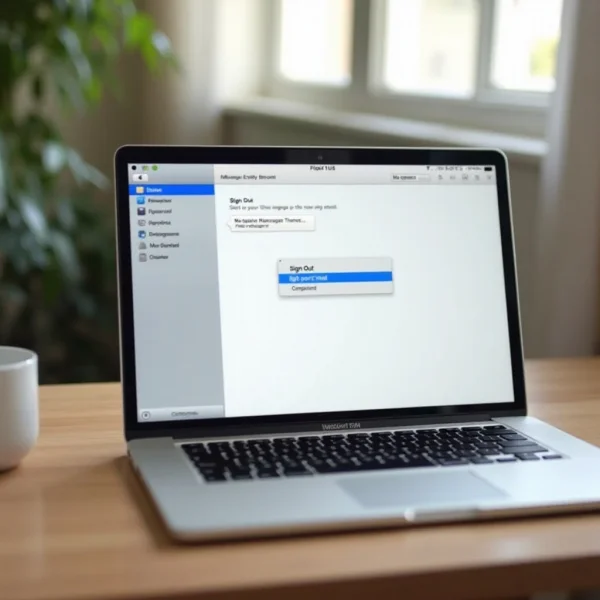
You’ll see an option to sign out of iMessage. Just click Sign Out, and your Mac will be disconnected from iMessage.
Step 5: Confirm Your Sign-Out
A confirmation window will pop up to double-check that you want to sign out. Click Sign Out again to complete the process, and your Mac will stop receiving iMessages.
Additional Settings to Manage iMessage on Your Mac
After signing out of iMessage, there are a few other settings you can adjust to further manage your experience and privacy on your Mac.
Stop Phone Number Sync
To prevent your phone number from being used for iMessage on your Mac, go to the iMessage tab in Messages Preferences. Under the section You can be reached for messages at, uncheck your phone number.
Disable Notifications for Messages
Even if you stay signed into iMessage, you might prefer not to be notified every time a new message comes in. To disable notifications, go to System Preferences > Notifications, then select Messages. From here, you can turn off message alerts or customize how you want to receive them.
Remove Your Apple ID (Optional)
For complete privacy, you can remove your Apple ID from the Messages app. In iMessage Preferences, click Sign Out next to your Apple ID. This will prevent iMessages from being sent or received on your Mac using that Apple ID.
Important Tips When Logging Out of iMessage on Mac
Here are some important tips to consider when logging out of iMessage on your Mac:
- Device Sharing: If you share your Mac with other people, logging out of iMessage ensures that your private conversations won’t be accessible to them.
- Accidental Sign-Outs: If you forget to log back into iMessage after signing out, you may miss important messages. Be sure to double-check your settings.
- Security: Signing out of iMessage is an extra layer of security, especially if your Mac is lost or stolen. Without being signed in, no one can access your messages on the device.

Troubleshooting: What to Do If iMessage Won’t Sign Out
If you’re having trouble signing out of iMessage on your Mac, here are a couple of troubleshooting tips that might help.
Checking Your Apple ID and Internet Connection
Make sure your Apple ID is set up correctly and that your Mac is connected to the internet. Sometimes a weak connection or Apple ID issues can prevent you from signing out properly.
Restarting Your Mac and Trying Again
If the sign-out process still isn’t working, try restarting your Mac. After rebooting, open the Messages app again and attempt to sign out. This often fixes minor issues.

Conclusion
Knowing how to log out of iMessage on your Mac is a simple but essential step for managing your privacy and device settings. By following these steps, you can ensure that your messages remain secure and that you’re in control of how your Mac communicates with your Apple ID. Whether you’re sharing your Mac or just want to take a break from iMessages, this guide has you covered.
If you need more help, don’t forget to check out this article on how to open the task manager on Mac: How to Open Task Manager on Mac.