When you switch from Windows to Mac, one of the first things you may look for is how to open Task Manager on Mac. While macOS doesn’t have a “Task Manager” per se, the equivalent tool is Activity Monitor. This app provides real-time insights into your Mac’s performance, including CPU usage, memory consumption, network activity, and more. It’s essential for troubleshooting slow apps, force-quitting unresponsive programs, and keeping your system running smoothly.
So, how do you open Task Manager on a Mac? In this guide, we’ll walk you through the different ways to open Task Manager (Activity Monitor) and show you how to use it like a pro.
What is Task Manager on Mac? Understanding the Activity Monitor
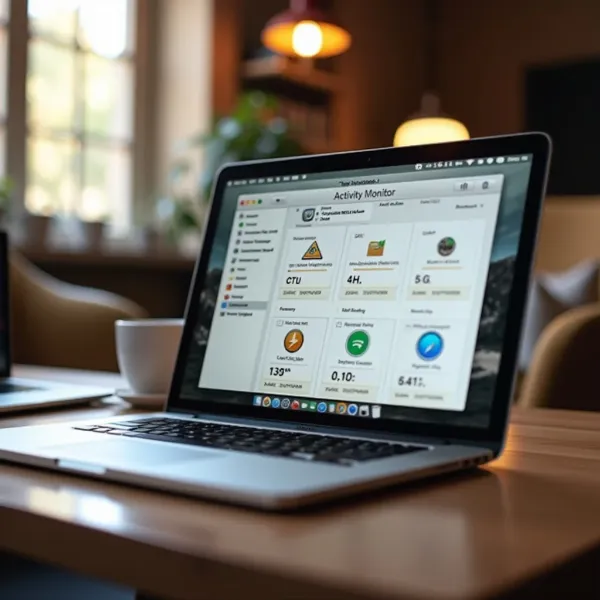
You may wonder, "What is Task Manager on Mac?" Many Windows users look for Ctrl+Alt+Delete on a Mac, but there’s no exact equivalent by that name. Instead, Activity Monitor serves the same purpose. This powerful app allows you to keep track of your system’s vital stats, like CPU usage, memory, disk activity, and network performance. It’s an essential tool for any Mac user who wants to understand what’s going on behind the scenes.
What Activity Monitor Tracks
Here’s what you can monitor with Activity Monitor:
- CPU Usage: See how much processing power each app is using.
- Memory Usage: Track how much RAM each program consumes.
- Disk Activity: Monitor how much data apps are reading from or writing to your disk.
- Network Usage: Observe the internet usage of apps and processes.
Why You Should Use Activity Monitor
Activity Monitor is perfect for checking up on your system’s health. It helps you identify apps or processes that may be slowing down your Mac. Whether you're troubleshooting a laggy program or want to quit apps that are using too many resources, this tool gives you everything you need to stay in control.
How to Use Activity Monitor Effectively
Once you’ve opened Activity Monitor, you’ll be able to sort the displayed data by CPU, memory, disk, or network activity. This makes it easy to find what’s consuming the most resources. For example, if an app is causing your Mac to lag, you can sort by CPU usage to pinpoint the issue and take action, like force quitting that app.
How to Open Task Manager on Mac: 4 Easy Ways to Access Activity Monitor
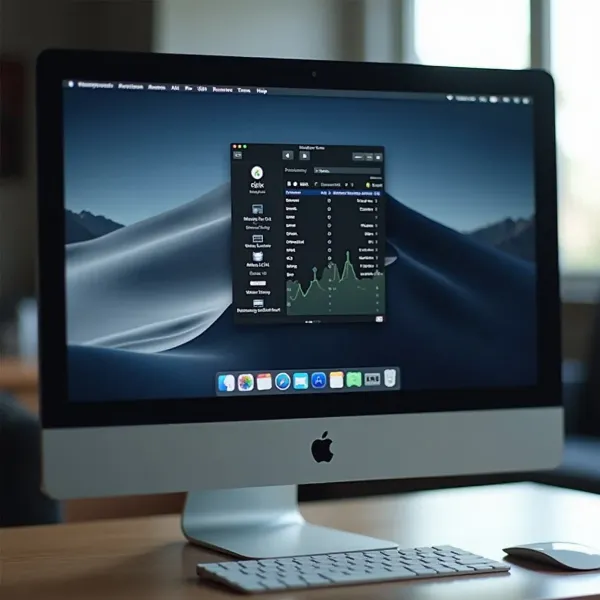
Now that you know why you need Activity Monitor, let’s explore how to get Task Manager on Mac. Here are four simple methods to open it, so you can get started in no time.
1. Use Spotlight Search (Fastest Method)
Spotlight is one of the quickest ways to find apps and tools on your Mac. To open Activity Monitor with Spotlight:
- Press Cmd + Space to open Spotlight.
- Type “Activity Monitor” and hit Enter.
This is the fastest method and works every time. It’s ideal when you need to access it quickly.
2. Open via the Applications Folder
You can also find Activity Monitor in your Applications folder:
- Open Finder.
- Go to the Applications folder, then open Utilities.
- Double-click on Activity Monitor.
It’s a straightforward way to access the app, but a bit slower than Spotlight.
3. Use Launchpad to Find Activity Monitor
Launchpad is another easy way to locate apps on your Mac:
- Open Launchpad (press F4 or click on the Launchpad icon in your dock).
- Type “Activity Monitor” in the search bar.
- Click the Activity Monitor icon to open it.
This is a great option if you prefer the Launchpad interface.
4. Accessing Activity Monitor Through Finder
Another simple way to learn how to access Task Manager on Mac is by using Finder:
- Open Finder.
- In the Finder menu, go to Go > Utilities.
- Double-click Activity Monitor.
This method works well if you’re already in Finder and want to access other utilities.
How to Use Activity Monitor to Monitor System Performance
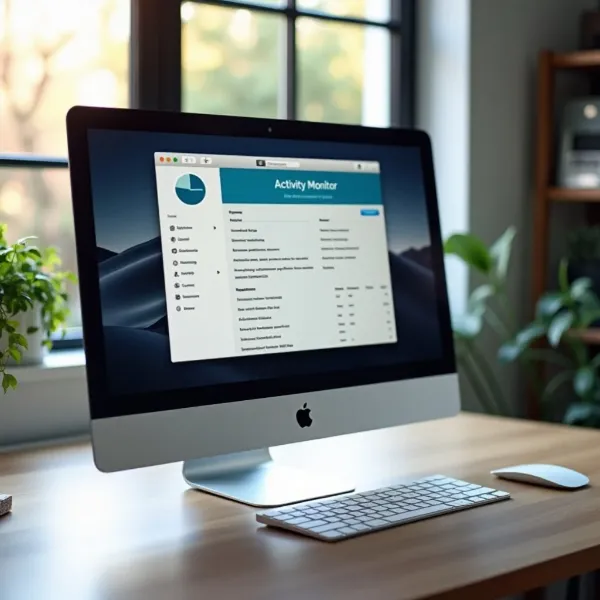
Once you’ve opened Activity Monitor, let’s look at how to use it to monitor your Mac’s performance. Here’s a breakdown of the key features you can track.
Understanding CPU Usage and Active Processes
Activity Monitor allows you to monitor your CPU usage. If your Mac starts to slow down, you can open the app to see which processes are using the most CPU power. For example, if a browser tab or app is consuming more CPU than it should, it could explain the lag. Sorting by CPU in Activity Monitor will help you quickly find and deal with the culprit.
Tracking Memory Usage and Applications Consuming RAM
Another common cause of slowdowns is excessive memory usage. In Activity Monitor, you can see how much RAM each app is consuming. Apps that use a lot of memory can slow down your Mac, so it’s helpful to sort by Memory to see which apps are using the most resources. If an app is using too much memory, consider quitting it to free up RAM and boost performance.
Monitor Battery and Energy Usage
For MacBook users, monitoring battery usage is key. In Activity Monitor, you can see how much energy each app is consuming. If you're working on a tight battery and need to stretch it out, you can quickly identify energy-draining apps and close them. This feature is handy when you're away from a power outlet and need to make the most of your battery life.
Check Disk and Network Activity for Performance Insights
Activity Monitor also lets you track disk and network usage. If you notice your Mac running slowly, checking the Disk tab can tell you if any app is writing or reading too much data from your disk. Similarly, the Network tab shows how much data apps are using online. High network usage can sometimes lead to slow internet speeds, so it's good to keep an eye on this.
How to Force Quit Apps Using Activity Monitor
Sometimes, apps freeze or get stuck, and you need to force quit them. Thankfully, Activity Monitor makes this process simple. Here’s how you can force quit an unresponsive app using Activity Monitor.
Steps to Force Quit an Unresponsive App
- Open Activity Monitor.
- Find the app that's not responding.
- Click on the app’s name, then hit the X button in the top-left corner.
- Confirm by clicking Force Quit.
This is the best way to close an unresponsive app and ensure it doesn't consume any more resources.
When and Why You Should Use Force Quit
Force quitting should be your last resort when an app refuses to respond to regular closing methods. It’s perfect when an app is frozen or using too many resources and slowing down your Mac. However, be aware that you may lose unsaved data when you force quit, so try to save your work first if possible.
Conclusion
Knowing how to open Task Manager on Mac and use Activity Monitor is a game-changer for keeping your system running smoothly. Whether you’re monitoring CPU, memory, disk, or network usage, Activity Monitor helps you troubleshoot performance issues and keep your Mac in top shape.
By checking Activity Monitor regularly, you’ll have a better understanding of how your Mac is performing, and you can take action to keep it running efficiently.