Knowing how to turn off your PS5 the right way is more important than it may seem. While it might feel simple, understanding the difference between Rest Mode and turning your console off completely can save you from issues like overheating, unnecessary power consumption, and even data corruption.
In this guide, we’ll show you easy ways to power down your PS5, whether you prefer using the controller or the physical power button.
Why It's Important to Properly Turn Off Your PS5
Turning off your PS5 properly is crucial for several reasons. Leaving your console on all the time can waste electricity and put unnecessary strain on the system, potentially leading to overheating. Not properly shutting it down could even risk corrupting your saved data or updates.
Taking the time to turn off your PS5 correctly ensures you’re conserving energy and extending the life of your console. Plus, when you power it down properly, you avoid potential software glitches that could disrupt your gaming experience.

How to Turn Off PS5 Using the Controller
Turning off your PS5 with the controller is the most convenient and commonly used method. If you’re lounging on the couch and don’t feel like getting up, here’s how to do it:
Step-by-Step Guide to Turning Off PS5 with the Controller
- Press the PS Button on your controllerPress the PlayStation button in the center of your controller to bring up the quick menu.
- Navigate to the power icon in the quick menuOnce the menu pops up, use the d-pad or the left joystick to move to the “Power” option. You should see an icon with a power symbol.
- Select "Turn Off PS5" to power downClick on the "Turn Off PS5" option. Your console will begin the shutdown process, and the light on the system will blink before turning off completely.
This method is quick and simple, but if you're not sure if your PS5 is fully off or in Rest Mode, you can always double-check the power light.

How to Turn Off PS5 Using the Physical Power Button
If you prefer a more hands-on approach or if you’re having trouble with the controller, turning off your PS5 using the physical power button is another reliable method. Here’s what to do:
Step-by-Step Guide to Turning Off PS5 with the Power Button
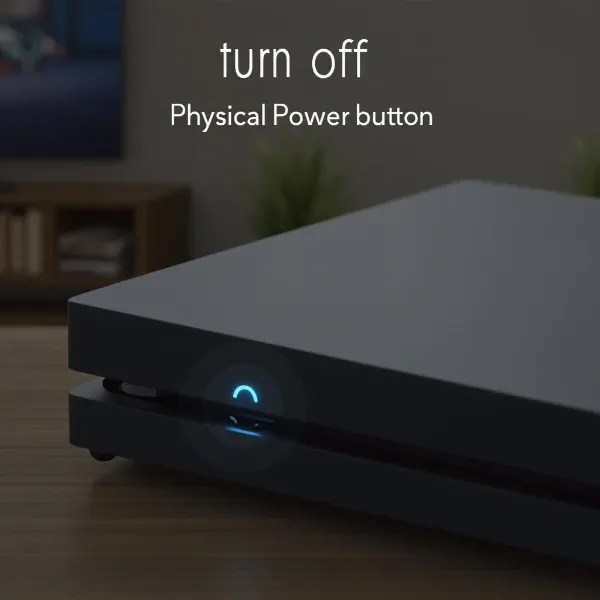
- Locate the power button on the consoleThe power button is located on the front of your PS5, just below the disc drive (for the disc version). It's a small button with a power symbol.
- Press and hold the button until you hear the second beepPress and hold the power button. You'll hear the first beep shortly after, signaling that the PS5 is entering Rest Mode. Keep holding the button down, and after a few more seconds, you’ll hear a second beep, which means the PS5 is fully powering off.
- Confirm that the PS5 is powered offAfter the second beep, the light on the PS5 will blink before turning off completely, confirming the console is fully powered down.
Keep in mind, the first beep puts the PS5 into Rest Mode, which is a low-power state. To fully turn off the console, make sure you wait for that second beep.
Rest Mode vs. Turning Off PS5
If you’re unsure about Rest Mode and whether or not you’ve powered off your PS5 completely, here’s the difference:
What is Rest Mode and When Should You Use It?
Rest Mode is a power-saving state where your PS5 continues to perform some background tasks like downloading updates or charging controllers, but it uses significantly less power than when fully on. You can use Rest Mode if you plan on coming back to your console soon and don’t want to go through the startup process again. It’s also a good option for overnight use when you're not actively playing but want to allow your system to continue tasks in the background.
However, Rest Mode doesn’t completely turn off your PS5. If you want to save energy or avoid issues like overheating or software glitches, it’s best to fully power down your system.

Troubleshooting Common Issues When Turning Off Your PS5
Sometimes, you might run into problems when trying to turn off your PS5. Here’s how to troubleshoot some common issues:
- Unresponsive Controller: If the PS button on your controller isn’t responding, press and hold the PS button for a few seconds to try to re-sync it. If that doesn’t work, restart your PS5 by holding the power button on the console until it turns off.
- PS5 Not Shutting Down: If your PS5 won’t turn off, it might be stuck in Rest Mode or dealing with a software glitch. To force it to shut down, press and hold the power button on the front of the console for about 10 seconds. If that doesn’t help, try restarting your PS5 in Safe Mode to rebuild the system's database or reinstall the software.
- Power Supply Issues: If the power light isn’t turning off after following the proper steps, check the power cable and connections. If the problem persists, the power supply might need attention, or the console could require service.
Conclusion
Learning how to turn off your PS5 the right way isn’t just about shutting it down—it's about keeping your console in top condition. Whether you use your controller or the physical power button, knowing the difference between Rest Mode and a full shutdown helps you preserve your PS5’s lifespan, avoid overheating, and ensure everything works smoothly when you turn it back on.
If you run into any issues, troubleshooting tips can get you back on track. In the long run, taking a few extra seconds to properly turn off your PS5 will save you from unnecessary headaches.
For more helpful tech tips, check out this article on how to figure out what motherboard you have.